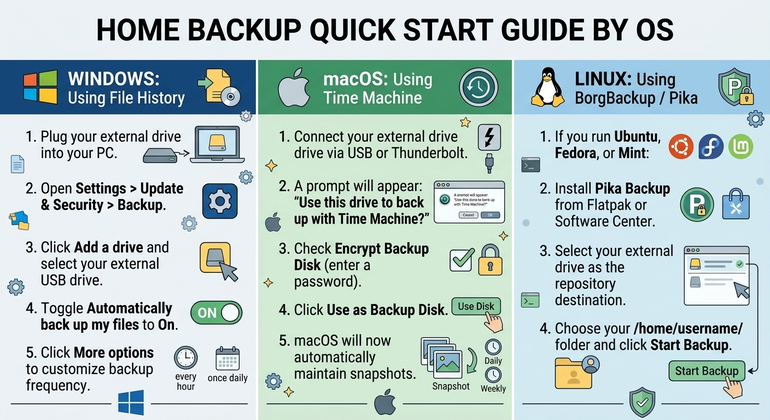
Losing your family photos, tax documents, or years of creative work to a failed hard drive or accidental spill is a devastating experience. Fortunately, setting up a rock-solid backup system doesn’t require enterprise servers or expensive subscriptions.
In this guide, we’ll break down the industry-standard 3-2-1 backup strategy into simple, actionable steps anyone can complete in an afternoon.
The 3-2-1 Rule Explained in Plain English
The golden rule of data protection is remarkably simple:
- 3 Copies: Keep three copies of all important data (1 primary copy + 2 backup copies).
- 2 Media Types: Store your copies on two different types of media (e.g., your laptop SSD and an external USB hard drive).
- 1 Off-Site Copy: Keep one copy in a physically separate location (e.g., an encrypted cloud backup or an external drive stored at a trusted friend’s house).
   [ Primary Work Laptop ]
              │
      ┌───────┴───────┐
      ▼               ▼
[ Local USB Drive ]   [ Offsite Backup ]
(Daily Fast Copy)     (Disaster Recovery)
What Hardware Do You Actually Need?
You don’t need a multi-thousand dollar server. For most households:
- One 1TB or 2TB External USB Drive: Brands like Western Digital, Toshiba, or Seagate offer reliable portable drives for $50–$70.
- Your Primary Computer: Windows, Mac, or Linux all include built-in backup tools at zero extra cost.
Step-by-Step Setup by Operating System
1. Windows: Using File History
- Plug your external drive into your PC.
- Open Settings > Update & Security > Backup.
- Click Add a drive and select your external USB drive.
- Toggle Automatically back up my files to On.
- Click More options to customize backup frequency (every hour or once daily).
2. macOS: Using Time Machine
- Connect your external drive via USB or Thunderbolt.
- A prompt will appear: “Would you like to use this drive to back up with Time Machine?”
- Check Encrypt Backup Disk (enter a memorable password).
- Click Use as Backup Disk.
- macOS will now automatically maintain hourly, daily, and weekly snapshots without slowing down your system.
3. Linux: Using BorgBackup / Pika Backup
If you run Ubuntu, Fedora, or Mint:
- Install Pika Backup from Flatpak or Software Center.
- Select your external drive as the repository destination.
- Choose your
/home/username/folder and click Start Backup.
Crucial Rule: The Backup Verification Test
A backup is only as good as your ability to restore it.
Once a month, perform the 1-Minute Restore Test:
- Open your backup drive.
- Find a random photo or document from 6 months ago.
- Copy it back to your Desktop and open it to verify it isn’t corrupted.
If it opens cleanly, your backup system is healthy.